
There are times when you need some help on keeping track of the emails that you send by way of delivery notifications or read receipts but currently, none of the web-based emails, including Yahoo Mail, Gmail, Hotmail, AOL Mail and many others, offer any kind of delivery notifications or read receipts except rediffmail.com.
Even when you send a message using Microsoft Outlook, Eudora or Lotus Notes (that allow you to request read receipts), the Internet email service would simply ignore the request and you may never get to know if the message was read by the recipients or delivered at all.
There are three ways by which you can know whether your mail has been read by the recipient.
 First one is by using a service called SpyPig. It is a simple and freeware online email tracking system that sends you a notification email as soon as the recipient opens and reads your message. The notification email will have details about the IP address and the number of times your email has been read.
Using SpyPig is very simple. Open the SpyPig website and type your email address where you wish to receive the notification and the message title in the notice form. Then choose the tracking image which you want to embed in the email and select the number of times you want to receive notifications.
Next, click the button to create and activate the SpyPig tracking image. Now, just drag and drop the tracking image in your outgoing email message. For SpyPig to work you and the recipient must use HTML-formatted email rather than just a plain-text or rich-text formatted email.
 The second option is by using Statcounter. Create a free account in it and go to the install code options, choose invisible tracking button and HTML only counter. Statcounter will now provide you an HTML image snippet that you have to insert inside the body of your HTML email message.
This will be a white GIF image which will be invisible to the human eye and as soon as your friend opens up your email, your statcounter logs will be updated. You will know the details like IP address of his computer and the date time when the email was opened.
The above option won't work if the recipient has configured his email client to block downloading of images from the internet automatically.
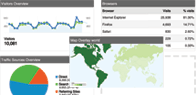 The third and the final option is by using Google Analytics. It involves embedding a tracking code as an external link in your email message. Whenever the recipient clicks on that link, Google Analytics will record that the link has been clicked thus indicating that the email has been read.
The advantage of this method is that no image is downloaded on the client's side but it could fail if the recipient doesn't click the hyperlink.
Do leave comments telling which trick helped you better.
Even when you send a message using Microsoft Outlook, Eudora or Lotus Notes (that allow you to request read receipts), the Internet email service would simply ignore the request and you may never get to know if the message was read by the recipients or delivered at all.
There are three ways by which you can know whether your mail has been read by the recipient.
First one is by using a service called SpyPig. It is a simple and freeware online email tracking system that sends you a notification email as soon as the recipient opens and reads your message. The notification email will have details about the IP address and the number of times your email has been read.Using SpyPig is very simple. Open the SpyPig website and type your email address where you wish to receive the notification and the message title in the notice form. Then choose the tracking image which you want to embed in the email and select the number of times you want to receive notifications.
Next, click the button to create and activate the SpyPig tracking image. Now, just drag and drop the tracking image in your outgoing email message. For SpyPig to work you and the recipient must use HTML-formatted email rather than just a plain-text or rich-text formatted email.
The second option is by using Statcounter. Create a free account in it and go to the install code options, choose invisible tracking button and HTML only counter. Statcounter will now provide you an HTML image snippet that you have to insert inside the body of your HTML email message.This will be a white GIF image which will be invisible to the human eye and as soon as your friend opens up your email, your statcounter logs will be updated. You will know the details like IP address of his computer and the date time when the email was opened.
The above option won't work if the recipient has configured his email client to block downloading of images from the internet automatically.
The third and the final option is by using Google Analytics. It involves embedding a tracking code as an external link in your email message. Whenever the recipient clicks on that link, Google Analytics will record that the link has been clicked thus indicating that the email has been read.The advantage of this method is that no image is downloaded on the client's side but it could fail if the recipient doesn't click the hyperlink.
Do leave comments telling which trick helped you better.
Read more...


